Install on Windows#
The launcher verifies your disc image, installs the build tools, builds the game and starts it. Nothing needs installing by hand.
Steps#
- Download
PinyonShift-Launcher.zipfrom the latest release. - Extract it to a folder and run
PinyonShiftLauncher.exe. Keep the two files in the archive together. - Drop the ISO you dumped from your own disc onto the launcher, or pick it with Choose ISO.
- Confirm ownership, then choose Verify and build.
- Leave the launcher open. The first build takes 20 to 60 minutes. If Windows must restart, setup continues after you sign in.
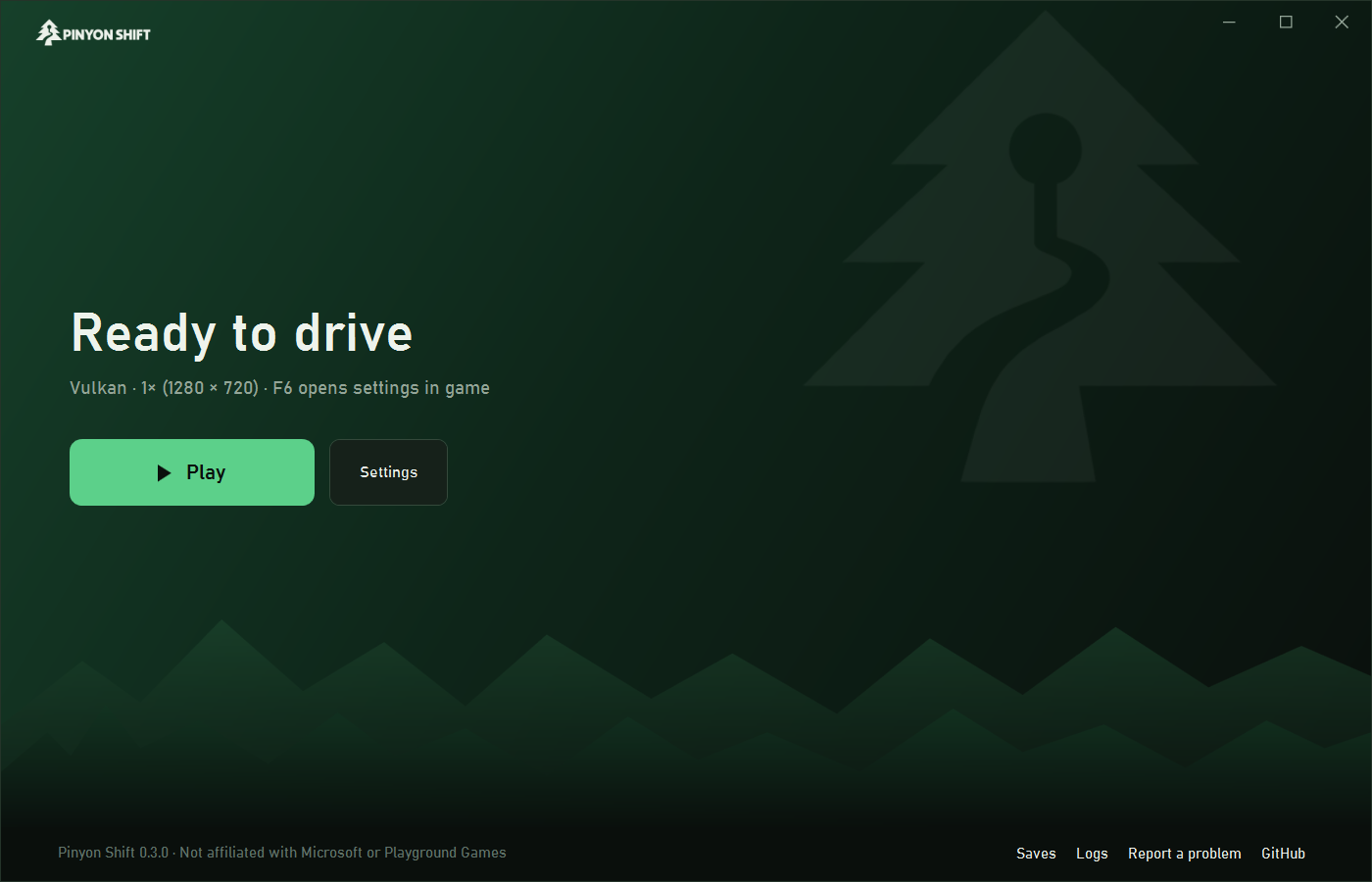
- Choose Play. Press F6 in game for settings.
Your disc image and game files stay on your machine. The launcher downloads only build tools and the pinned ShiftGlue source.
Verify the download#
The launcher isn't code-signed yet, so SmartScreen may call it an unrecognized app. Download it only from this repository's releases, and compare the ZIP's SHA-256 with the value in the release notes:
Get-FileHash .\PinyonShift-Launcher.zip -Algorithm SHA256
Administrator permission is requested only when Visual Studio 2022 C++ Build Tools (17.1 or newer) must be installed. VS 2019 alone isn't enough.
Updating#
Choose Update to PinyonShift-Launcher.zip and running it still works too.
Use an extracted folder#
Choose extracted folder accepts a folder holding default.xex, the two facade executables and media. Every file must match the cataloged size and SHA-256 of the supported disc. Missing, modified or extra files are rejected before building. The source folder is never changed.
Install location#
By default everything lives under %LOCALAPPDATA%\PinyonShift. To build on another drive, choose Change next to Installs to on the setup screen. This picks where new installs go; it doesn't move an existing install or save. Microsoft Build Tools still need space on the system drive.
Portable install#
Put an empty file named portable.txt next to PinyonShiftLauncher.exe, or start it with --portable for one run. Source, tools, the build, logs, saves, settings, photos and shader caches then go in a data folder beside the launcher. Nothing is written to %LOCALAPPDATA% or the registry, and no absolute path is stored, so the folder can move to another drive or PC.
PinyonShift\
  PinyonShiftLauncher.exe
  portable.txt
  data\source\<version>\                  source, tools, build, setup logs
  data\source\<version>\.local\preview\   saves, settings, game logs, crash reports
- Extract it to a folder you can write to, such as
D:\Games\PinyonShift, not Program Files. - Keep the path short: the
datafolder's path must be 70 characters or fewer. - After moving the folder, the next rebuild recompiles from scratch. Playing the existing build needs no rebuild.
Launcher settings#
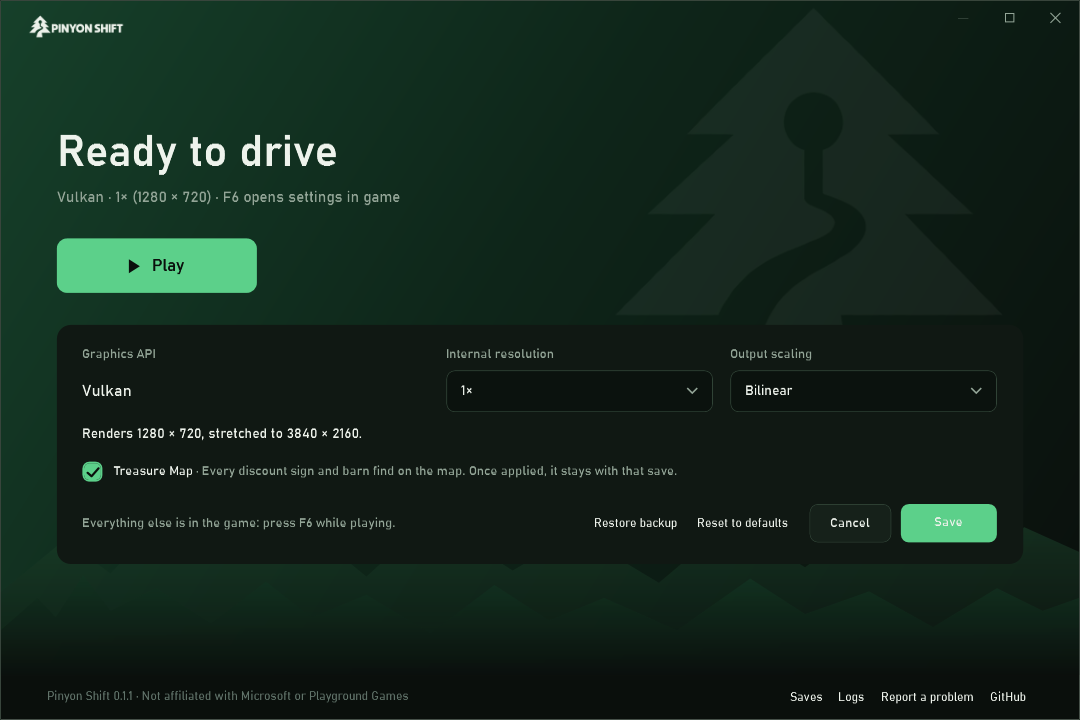
Settings sets the internal resolution and the output scaling (bilinear, CAS or FSR 1), and shows the resulting resolutions. It also has the Treasure Map toggle. This PC lists the GPU, its memory, the CPU cores and the display's refresh rate, and recommends an in-game preset. Everything else is in the in-game settings.
Uninstall#
Close the launcher and the game, then delete the launcher folder and %LOCALAPPDATA%\PinyonShift. A portable install is only its own folder. Nothing is registered as a service or startup entry. Remove Visual Studio Build Tools from Installed apps only if nothing else uses them.